
Protect your forms with Google reCAPTCHA
Google reCAPTCHA helps protect your marketplace from spam and automated messages.
Once enabled, visitors will need to confirm they are human before submitting certain forms.
You can add reCAPTCHA protection to the following forms:
- Marketplace contact form
- Supplier contact form
- User registration form
1. Create your reCAPTCHA keys
Before activating reCAPTCHA in your marketplace, you need to generate your Google reCAPTCHA keys.
Go to:
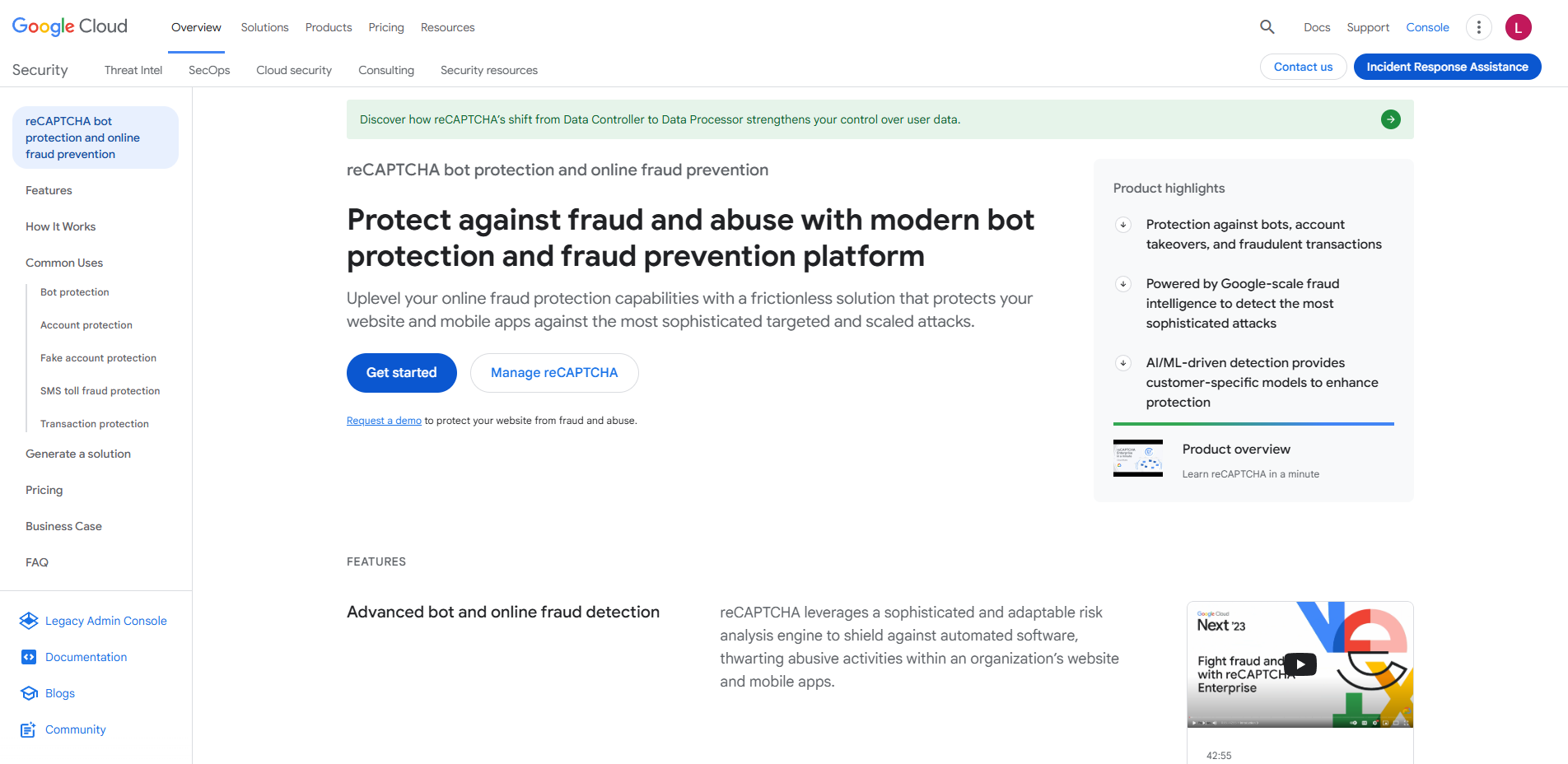
👉 https://cloud.google.com/security/products/recaptcha
Create a new reCAPTCHA configuration, click "Get started".
Fill in the following fields:
Label
Choose a name for your website (for example: My Marketplace).
reCAPTCHA type
Select:
Challenge v2 → "I'm not a robot" Checkbox
Domains
Enter your domain name without:
https://www- any subdomain
Example:
mymarketplace.com
Project Name
Choose a name for your Google project.
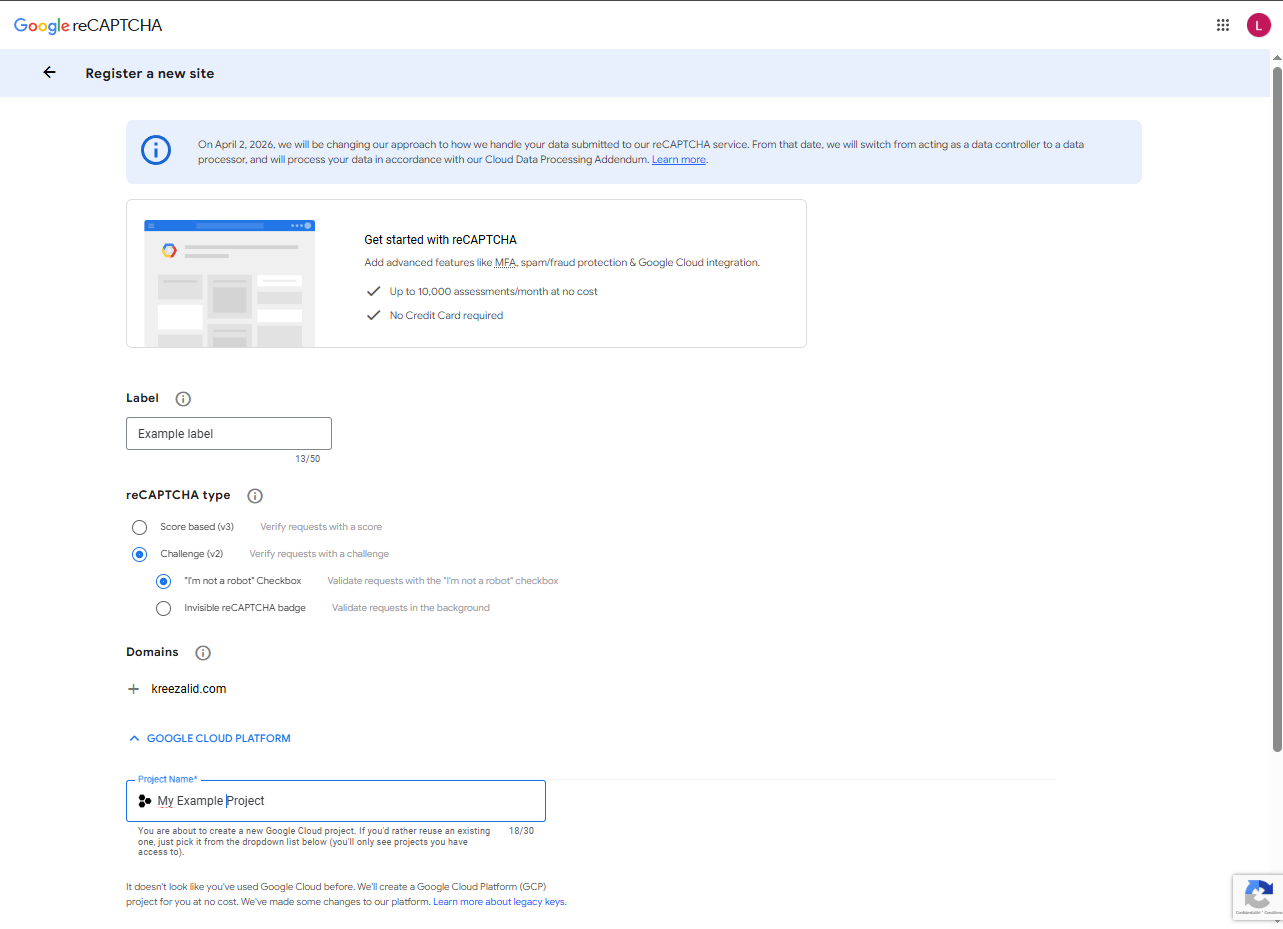
Accept Google's terms and submit the form.
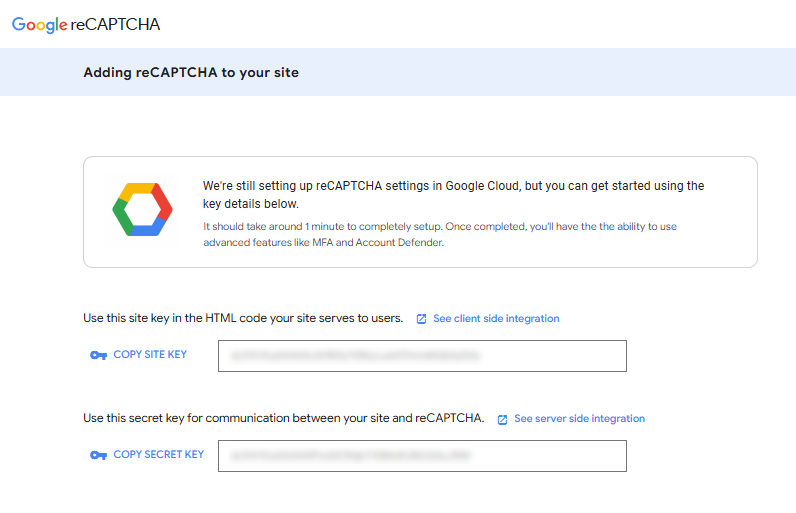
Google will then generate two keys for you:
- Site Key
- Secret Key
⚠️ Important
Keep these two keys — you will need them to activate reCAPTCHA in your marketplace.
2. Activate reCAPTCHA in your marketplace
Log in to your Admin Dashboard.
Go to:
Apps → ReCaptcha
Click Install.

Then click Activate ReCaptcha plugin.
You will need to:
- Enter your Site Key
- Enter your Secret Key
- Select the forms you want to protect
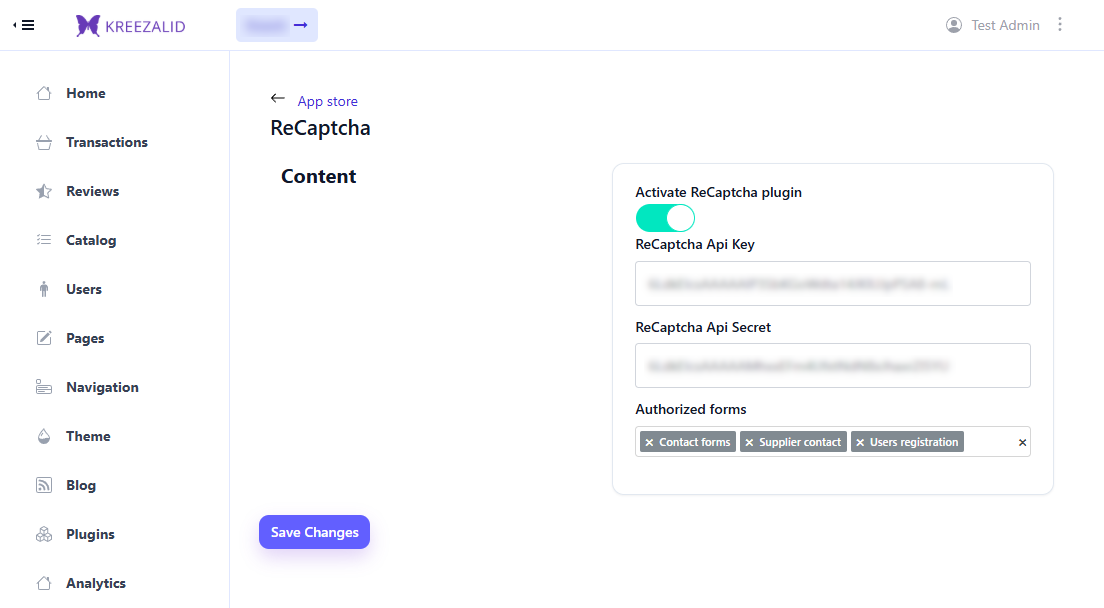
Save your settings.
3. You're done!
reCAPTCHA is now active.
Visitors will see the "I'm not a robot" checkbox before submitting the selected forms.
This helps prevent spam and automated submissions on your marketplace.
💡 Tips
Test the protection
After activating reCAPTCHA, try submitting one of the protected forms to make sure the checkbox appears correctly.
You can change the protected forms anytime
Simply return to:
Admin → Apps → ReCaptchaand update your settings.
⚠️ Troubleshooting
reCAPTCHA does not appear on the form
Check that:
- the domain is correct in Google reCAPTCHA settings
- the domain was added without
https:// - the Site Key and Secret Key are correct
Example of a correct domain configuration
mymarketplace.com
Incorrect examples
https://mymarketplace.com
www.mymarketplace.com
admin.mymarketplace.com
Updated on: 11/03/2026
Thank you!