
What This Article Covers
This article explains the seller Stripe account monitoring features available to marketplace administrators: what you can see, what the account statuses mean, how account status affects your marketplace, and what your sellers experience on their side.
Why Seller Account Monitoring Matters
Each seller on your Stripe Connect Custom marketplace must maintain an active, verified Stripe connected account to be able to sell and receive payouts.
Previously, seller account issues could remain opaque until something went wrong — a payout failed, a payment was blocked, or a seller contacted support.
The monitoring features described in this article give you much earlier visibility. More importantly, seller Stripe account status is now directly linked to whether their listings can be purchased. An account that is no longer operational in Stripe will not be able to take new orders — this is automatic, not manual.
The Connected Accounts Index
Admin → Payment service providers → Stripe Connect Custom → Users
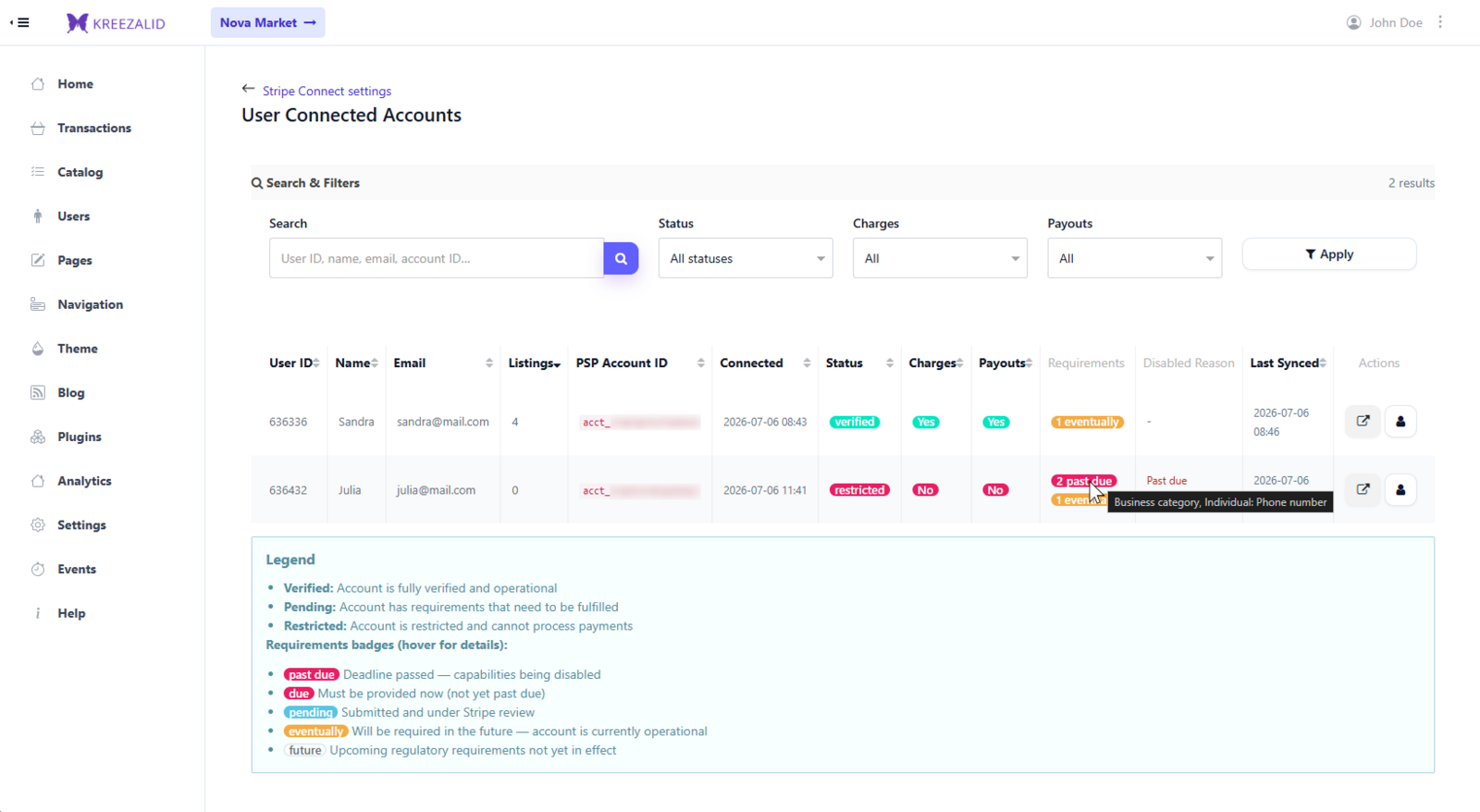
What each column shows
| Column | What it tells you |
|---|---|
| Name / User ID / Email | Identifies the seller in your marketplace |
| PSP Account ID | The Stripe account ID (acct_xxx) — useful when contacting Stripe support |
| Connected | When the seller’s Stripe account was created |
| Status | The current verification status (see below) |
| Charges enabled | Whether the seller can currently accept payments |
| Payouts enabled | Whether Stripe can currently pay out to the seller’s bank account |
| Requirements | Outstanding items Stripe is requesting from the seller |
| Disabled reason | If Stripe has restricted the account, the reason is shown here |
| Last synced | When this account’s data was last refreshed from Stripe |
Filtering and searching
| Filter | Available options |
|---|---|
| Verification status | Verified / Restricted soon / Restricted / Unverified |
| Charges enabled | Yes / No |
| Payouts enabled | Yes / No |
There is no dedicated filter option for “Under review” — sellers in that status still appear in the list and can be found via search, but the status filter dropdown does not isolate them.
You can also search by seller name, email, user ID, or Stripe account ID.
Seller Account Statuses — What They Mean
| Status | What it means | Impact on selling |
|---|---|---|
| Verified | No blocking requirements, charges and payouts are enabled | Seller is fully operational |
| Restricted soon | Account is currently operational but Stripe has upcoming mandatory requirements | Seller can still sell — action needed before Stripe’s deadline |
| Restricted | Stripe has disabled the account due to outstanding requirements or a compliance issue | Seller’s listings cannot be purchased |
| Under review | Documents were submitted and Stripe is reviewing them | Temporarily unavailable — no action required from the seller |
| Unverified | Onboarding not completed | Seller’s listings cannot be purchased |
Note on “Restricted soon”: These sellers are still fully operational and their products can still be purchased. The warning exists to give them time to act before Stripe’s deadline. It is not the same as a blocked seller.
How Account Status Affects Purchasing
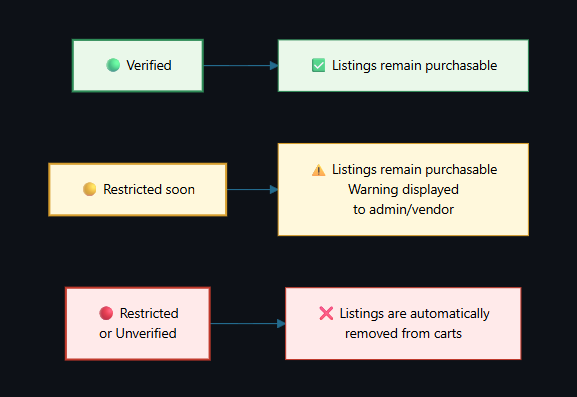
Seller account status is enforced in your marketplace, not just displayed.
If a seller’s account is not operational (Restricted or Unverified), their listings are automatically removed from buyer carts during checkout validation. Buyers cannot complete a purchase for those listings until the account is back in good standing.
If a seller has “Restricted soon” requirements, they remain fully operational. Their products can still be purchased.
Under the hood, this check is based on whether Stripe currently allows charges and payouts on the account — which is what the status label reflects in the vast majority of cases. A Verified account is never blocked by this check, even if Stripe’s charges/payouts flags briefly show otherwise before the next sync.
This protects your marketplace from situations where a buyer pays for a product tied to a seller who cannot actually receive the payment.
What Sellers See on Their Dashboard
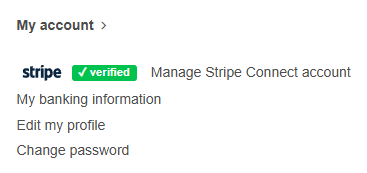
Account status badge
On their dashboard, sellers see a badge showing their current Stripe account state and a link to continue onboarding or manage their Stripe account.
Warning banners
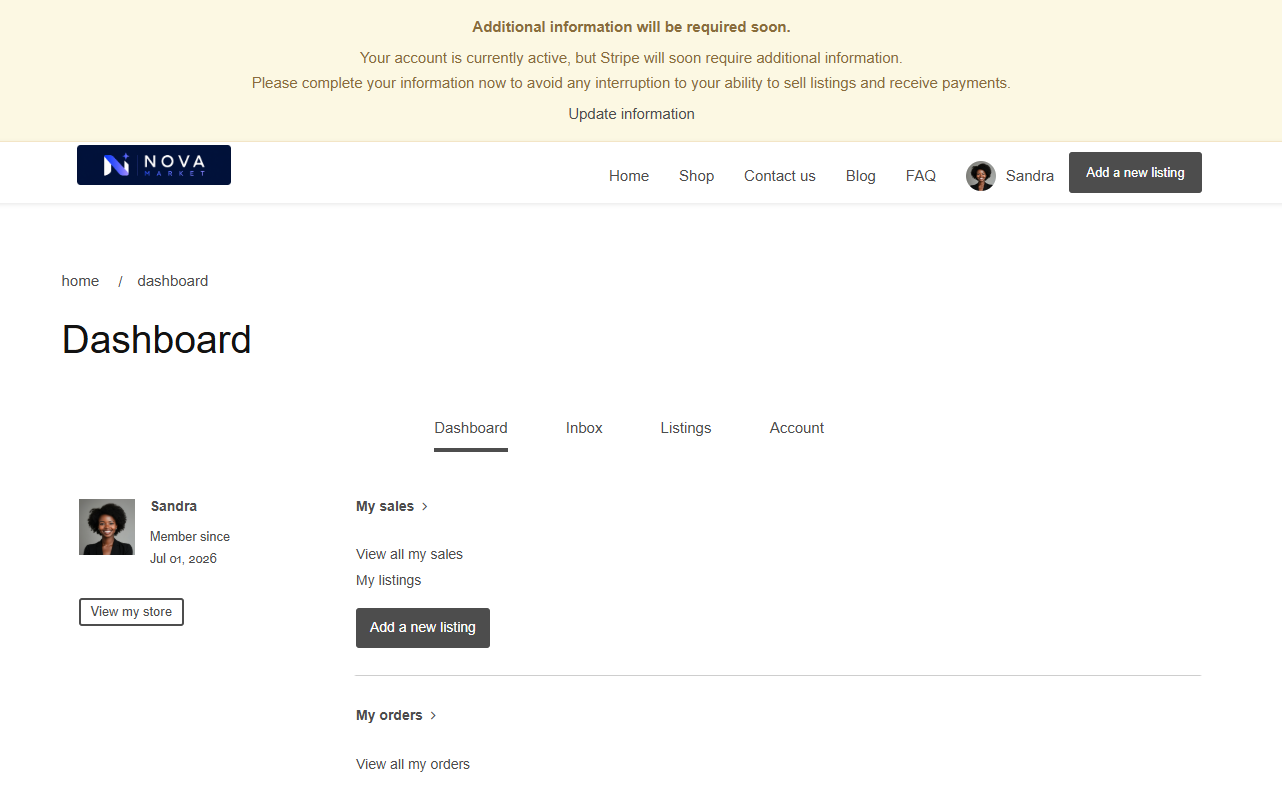
Sellers also see contextual warning banners throughout their session when attention is needed — not only on the dashboard.
| Banner | When it appears |
|---|---|
| No account connected | The seller has not yet started Stripe onboarding |
| Update required | The account exists but has blocking requirements |
| Under review | Documents submitted, awaiting Stripe review |
| Action needed soon | Account is operational but has upcoming requirements (eventually due) |
Email Notifications Sellers Receive
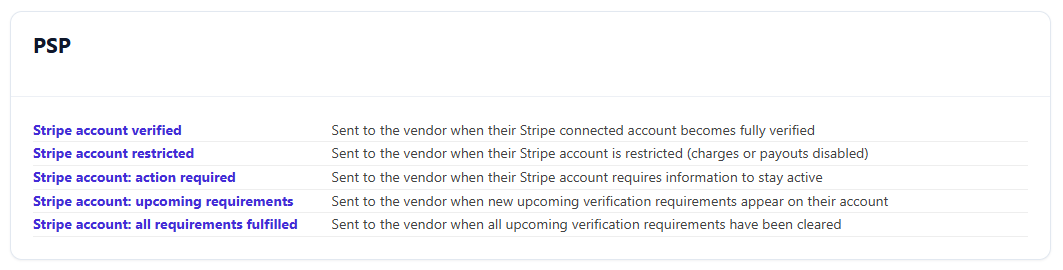
The platform sends automatic email notifications to sellers when their account status changes. Notifications are only sent after a seller’s account has been verified at least once — to avoid noise during initial onboarding.
| Event | Email sent |
|---|---|
| Account reaches verified for the first time | Account verified |
| Account becomes restricted | Account restricted — action required |
| Account moves to pending or unverified state | Action required |
| New eventually-due requirements appear | Upcoming requirements warning |
| Eventually-due requirements are resolved | Requirements resolved |
Customizing notification templates
You can edit the copy and styling of all these seller-facing emails from Admin → Settings → Notifications.
Notifications You Receive as an Admin
You are also notified by email whenever one of your sellers’ account statuses changes — not just the seller. This uses the same “verified at least once” rule as the seller emails above, so you won’t be notified during a seller’s initial onboarding, only once their account has reached Verified for the first time and then changes again.
The email includes the seller’s name and email, their user ID, their Stripe account ID, and the previous and new status, so you can act on it without opening the connected accounts index first.
This admin notification is sent as a fixed email and is not one of the templates editable from Admin → Settings → Notifications.
Common Scenarios and What to Do
A seller’s listings are being removed from buyer carts
The seller’s Stripe account is not operational (Restricted or Unverified). Find the seller in the connected accounts index and check the Requirements and Disabled reason columns to understand what Stripe needs. Direct the seller to their dashboard to continue onboarding or resolve the outstanding requirements.
A seller says they completed onboarding but their status still shows as Unverified
The status will update automatically once the change is processed from Stripe’s side. If it hasn’t updated yet, have the seller log back into their dashboard — the platform re-fetches their account state immediately on the onboarding return path.
A seller received a “Restricted soon” email but is confused
Their account is still fully operational — they can sell normally. The email is an early warning that additional information will be required in the future. The seller should log into their Stripe account and complete the indicated items before Stripe’s deadline.
A payment shows as “Refund pending” and has not updated
Some payment methods process refunds asynchronously. The platform handles the final outcome automatically once Stripe confirms it. If a refund appears stuck for an unusually long time, check the Stripe Dashboard for that refund’s current status, or contact support.
A seller’s account shows “Under review”
The seller has submitted the required documents and Stripe is reviewing them. No action is needed from you or the seller. The status will update automatically when Stripe completes the review.
Frequently Asked Questions
Why is a seller’s “Charges enabled” column showing No even though their status is Verified?
This is unusual. The verified status in Kreezalid reflects Stripe’s requirements check, but charges and payouts enabled flags come directly from the Stripe account object. If there is a discrepancy, check the Stripe Dashboard for that account and contact support if needed.
Can I stop a “Restricted soon” seller from selling before their deadline?
Currently, sellers with “Restricted soon” accounts are still allowed to sell — the restriction applies only when the account actually becomes non-operational. If you need to take manual action, you would need to do so through your marketplace’s seller management tools.
Can I customize which emails are sent?
You can edit the copy and styling of the seller-facing templates from Admin → Settings → Notifications. The admin notification email you receive when a seller’s status changes is fixed and not editable.
A buyer tried to purchase from a seller and got an error about the seller’s account. What do I tell them?
The seller’s Stripe account is currently not operational. Their listing is temporarily not purchasable. Once the seller resolves their Stripe account situation, their listings will automatically become purchasable again.