
MCP (Model Context Protocol) is an open protocol that lets an AI assistant use an outside service — here, your marketplace.
What an agent can do
Once authorized, the agent reads the structure of your marketplace and changes it when you ask in the conversation:
- the catalogue: categories, listing attributes, order types, collection models and collections;
- content: pages, blog articles and the links of existing menus;
- public settings: name, language, homepage, SEO, footer, layout and theme options, and user groups.
It does not:
- switch the theme, or change its colours or code (custom CSS and JavaScript);
- configure payments or apps;
- read your credentials or keys: they are never sent to it;
- add code that runs on your storefront (a script, an embed): it is refused everywhere, and stays yours to add in the admin panel;
- read or change listings, orders, members, messages or reviews.
Switch the MCP server on
-
In the menu, under , click . This screen is not reached from the Settings screen.
-
Click Switch on. The confirmation message “The MCP server is now reachable for this marketplace.” appears.

-
Copy the address with the icon on its right (Copy the address). It looks like
https://<your marketplace>/mcp.
Always use the address copied from this screen. For a marketplace with a custom domain, it is the address on that domain: the server answers there only.
Connect ChatGPT or Claude
ChatGPT’s and Claude’s menus change often; the labels below are those of October 2026. If in doubt, follow their help, linked under “Before you start”.
Claude: open Customize › Connectors, click Add custom connector, name the connector, paste the address, then click Add. On a Team or Enterprise plan, an owner of the organization adds the connector; each member then clicks Connect.
ChatGPT: turn developer mode on in the settings, then create an app by pasting the address and choosing OAuth as the authentication. On a Business or Enterprise plan, a workspace owner must allow developer mode first.
For another MCP client (Cursor, VS Code, Claude Code, a script), and for the technical details, see the MCP server page of the developer hub.
The agent then opens your marketplace’s authorization screen in your browser:
-
Log in to your admin panel if asked. You come straight back to the authorization screen.
-
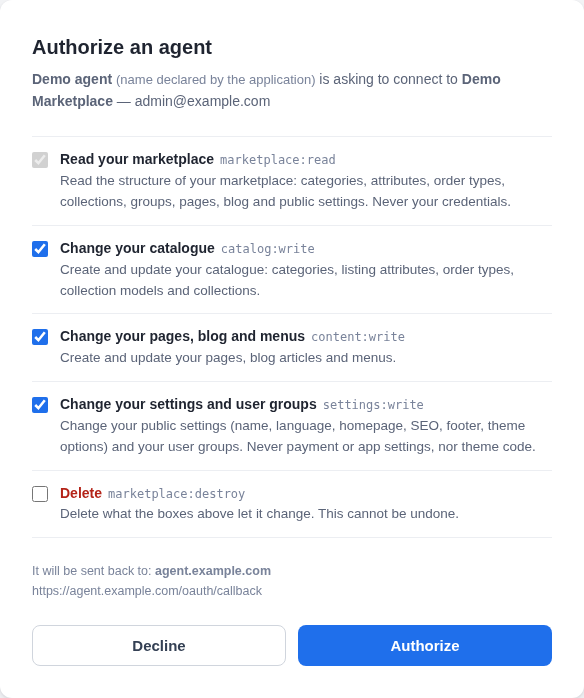
The Authorize an agent screen shows the agent’s name, as the agent declares it, and the address the authorization will be sent back to (“It will be sent back to:”). That address is the part that was checked: it must match the agent you are connecting (for example chatgpt.com or claude.ai).
-
Tick the permissions you grant, one box per permission:
- Read your marketplace: always granted, the box cannot be unticked.
- Change your catalogue
- Change your pages, blog and menus
- Change your settings and user groups: never payment or app settings, nor theme code.
- Delete: delete what the boxes above let it change. This cannot be undone.
Which boxes come pre-ticked depends on what the agent asks for; Delete is never pre-ticked. Read each box before you confirm.
-
Click Authorize, or Decline to grant nothing.
The agent gets only the permissions you ticked, whatever it asked for.
When the agent lacks a permission
If you ask the agent for a change its permissions do not cover, the change is refused before any preview, and the agent offers to reconnect. The Authorize an agent screen then comes back with:
- the permissions already granted ticked, marked “Already granted to this application.”;
- the missing permission ticked, marked “Needed for what the agent just tried to do.”
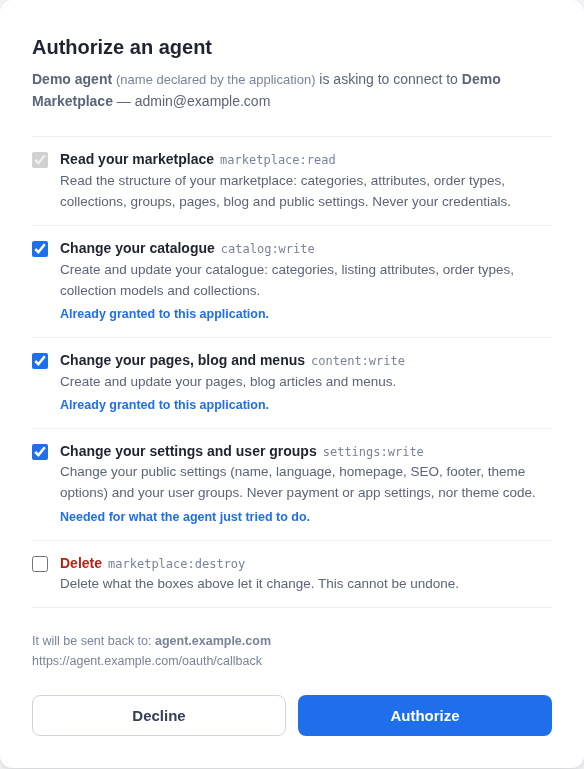
You only have to confirm, or untick what you refuse. Delete is the exception: even when it is the missing one, its box stays unticked, marked “Asked for by the application. Tick it only if you want it.”
The screen remembers the refusal for a few minutes only. After that, it shows as for a first connection.
How a change happens
- The agent reads the structure of your marketplace.
- It prepares a preview: the list of what it will create, change or delete. Nothing is written yet.
- It applies exactly that preview. If the marketplace changed in between — someone edited a category in the admin panel, for example — the apply is refused and the agent has to preview again.
Everything else stays as it is: it deletes only what it names explicitly, and only with the Delete permission.
ChatGPT and Claude usually ask you to confirm before a change. Read the preview at that moment: it is the last chance to stop it.
What your users see
Your storefront stays the same when you switch the MCP server on. What the agent changes shows up as if you had made it in the admin panel, with two precautions:
- a collection or a blog article the agent creates stays offline until you ask it to publish it;
- a collection’s image is added in the admin panel only.
Take back control
On the AI connectors screen, the list shows every agent that asked to connect, with its access:
- Connected: the agent can act on your marketplace, within the permissions you granted;
- Disconnected: it was authorized but has no access any more, because it was disconnected or has not used it for a month;
- Registered, never authorized: it started connecting but nobody authorized it;
- Blocked: it can no longer ask to be authorized.

- Disconnect cuts the agent’s access at once. It can come back: it will ask to be authorized again, and an administrator has to accept.
- Block cuts its access too, and refuses any new request from it. Unblock lifts the refusal without giving the access back: the agent has to be authorized again.
- Switch off the server to cut every agent’s access at once: the address answers again like a page that does not exist. If you switch the server back on, agents still connected get their access back; to keep one out for good, block it.
There is one row per agent, for example a single one for ChatGPT: disconnecting or blocking it cuts off every administrator who had connected it to your marketplace.
Good practice
- Grant only the permissions the task needs. You can add more when the agent asks for them.
- Read the preview before you confirm, especially when it announces deletions.
- Tick Delete only for a deletion you have decided on.
- Be wary of outside content you have the agent read (a web page, a document): it may carry instructions written by someone else. What the agent can do stays limited to the permissions you ticked.